
Setup Guides
Choose your device below to view easy step-by-step instructions.
Get started in less than 5 minutes.
For Samsung, LG, and other devices, you may choose a compatible paid player. Player fees are not included with your subscription.
Android TV
Fire TV · Smart TVs · TV Boxes
Android Mobile
Phones · Tablets
Samsung / LG / Roku
Tizen · webOS · Roku OS
Apple / iOS
iPhone · iPad · Apple TV
PC / Mac / Web
Windows · macOS · Browser
MAG / Portal
MAG Devices
Ibo Pro Player
Paid Player · Multi-Device
7 Player Setup for Android TV
Compatible with most Android TV, Google TV, Fire TV, and Android TV boxes.
Installation Guide (Official)
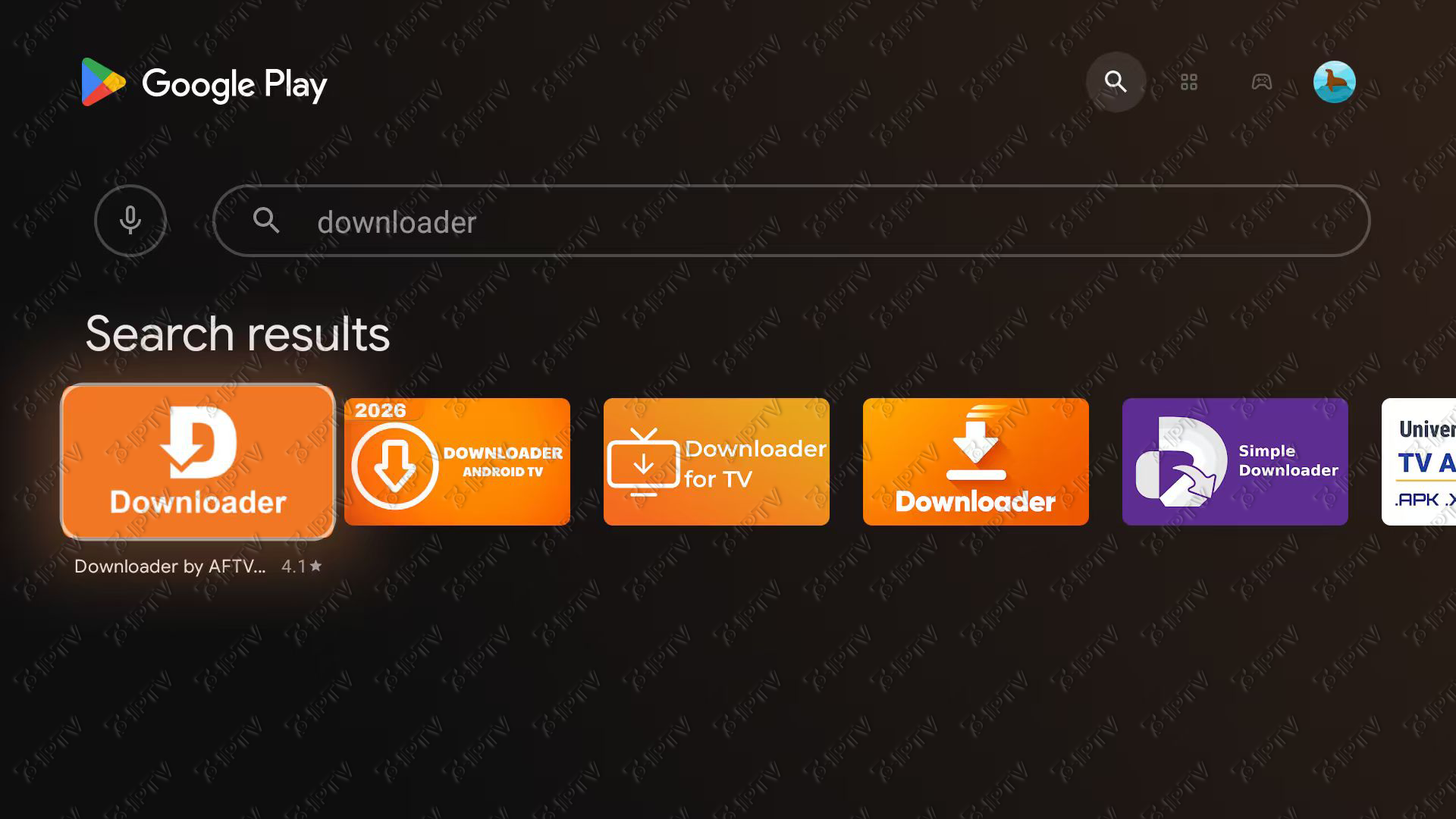
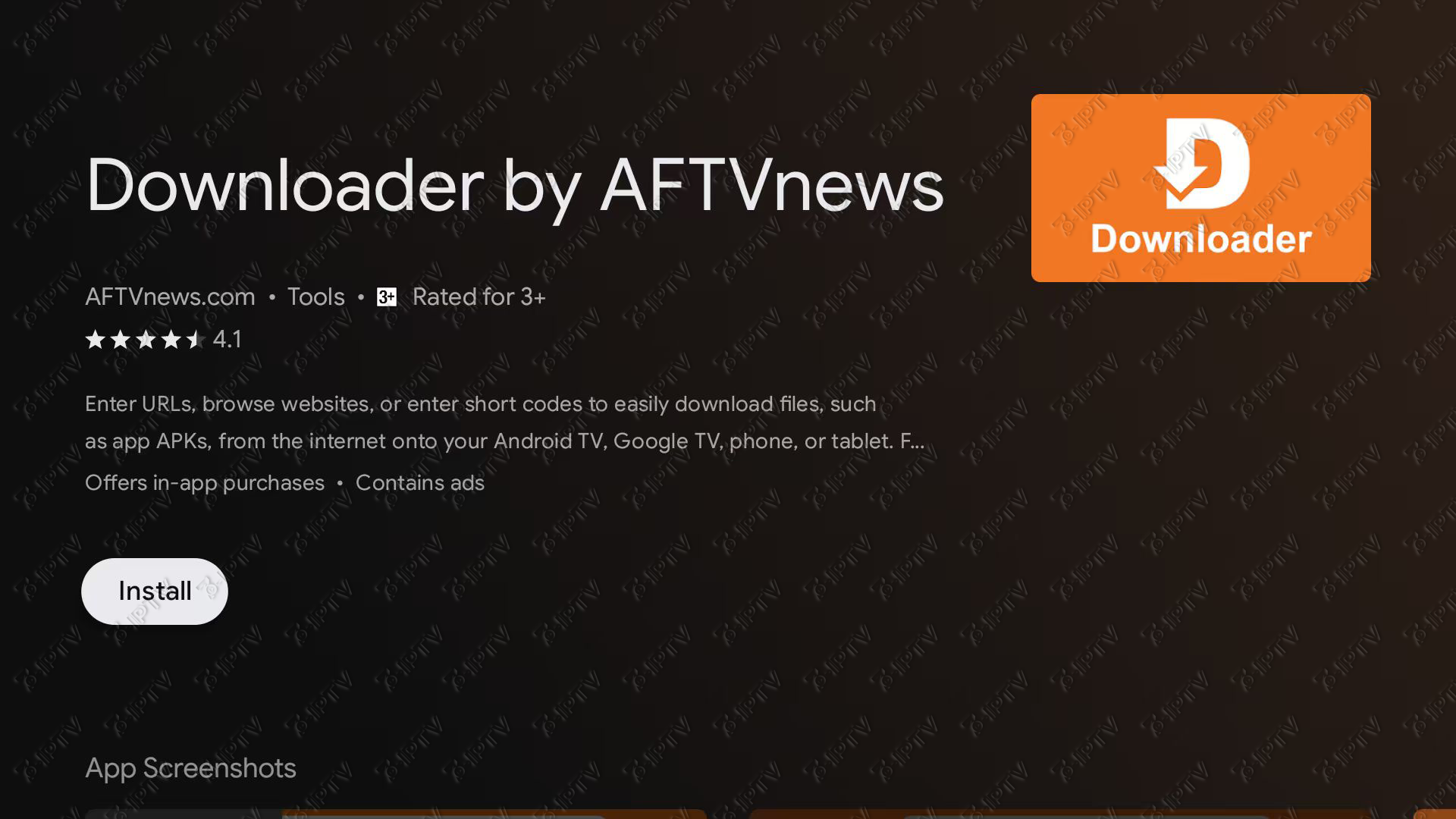
Get “Downloader” App
Open the app store on your device, search for Downloader (orange icon), and install it.
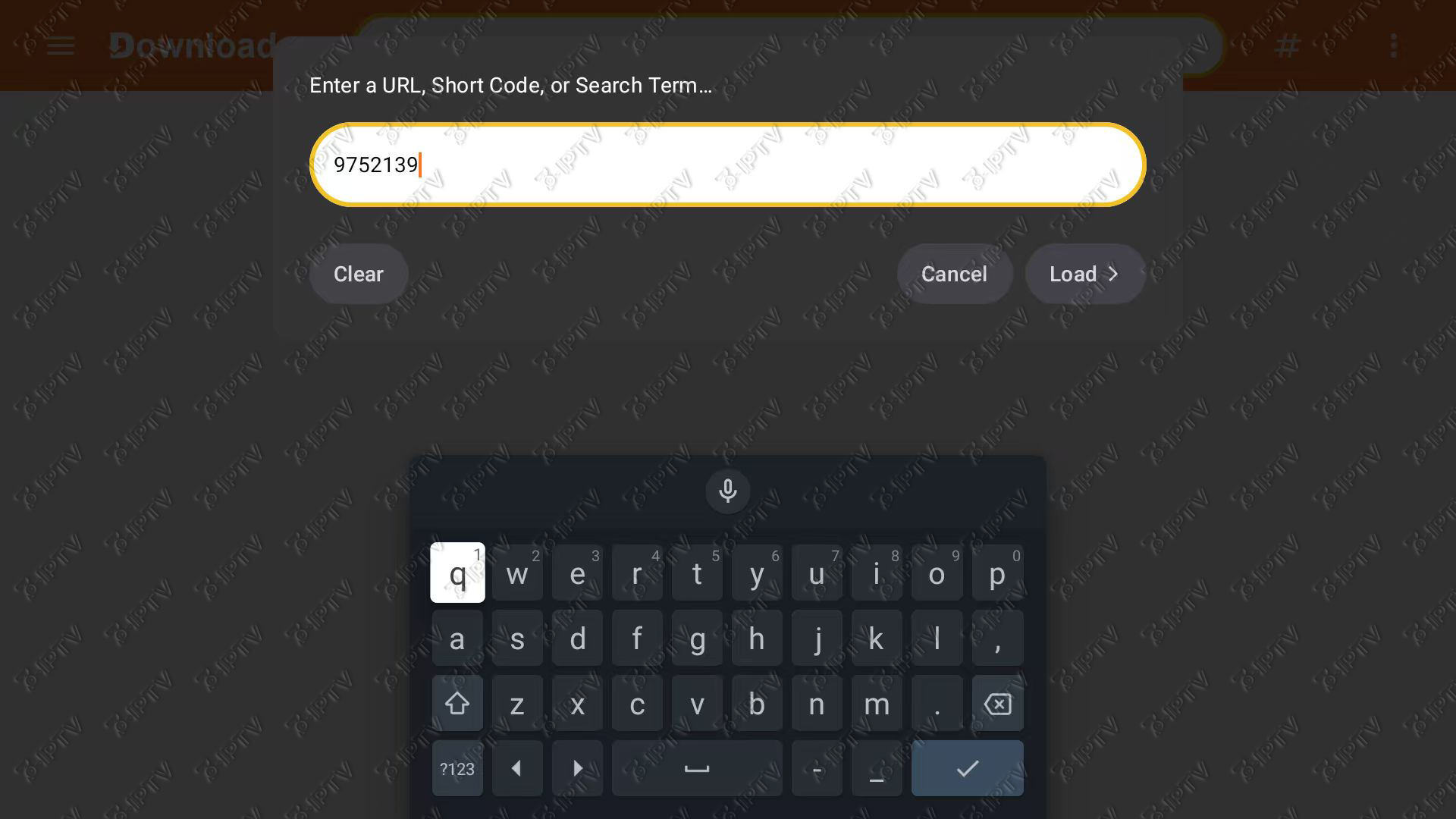
Enter Code
Open Downloader, enter code 9752139, and select Go. Wait for the 7 Player APK to download.
Wait for the file to download.
Install 7 Player
Select Install. If a security message appears, open Settings and allow Downloader to install unknown apps. Then return to Downloader and select Install again.
⚙️ Note: If a security popup appears, click Settings ➜ Turn ON for Downloader ➜ Press Back ➜ Click Install again.
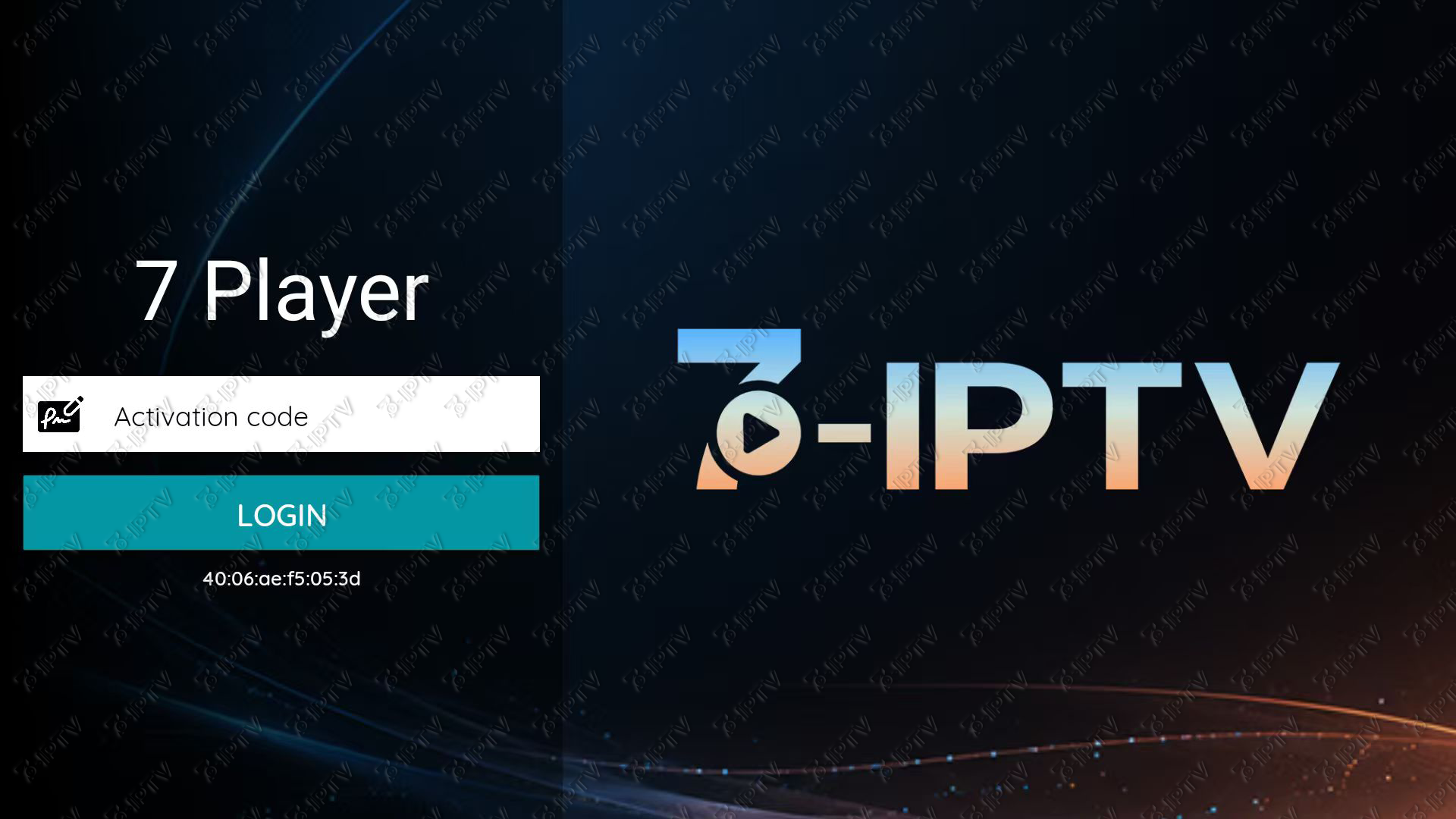
Enter Your Activation Code
Open 7 Player and enter the activation code from your account email when prompted. Wait for the app to finish loading.
7 Player Setup for Android Mobile
Compatible with most Android phones and tablets. No Downloader required—download the APK directly using your browser.
Download the 7 Player APK
Open Chrome or any browser on your device and tap the official download button below.
Install 7 Player
Open the downloaded APK file and select Install. If prompted, open Settings and allow your browser to install unknown apps. Then return and select Install again.
Enter Your Activation Code
Open 7 Player and enter the activation code from your account email when prompted. Wait for the app to finish loading.
Samsung, LG & Roku Setup
For Tizen, webOS, and Roku OS devices.
Choose a Paid Player
Open your device’s official app store and install a compatible paid player. This guide uses Ibo Player Pro as the recommended example.
- Ibo Player Pro (Recommended)
- Other compatible paid players available for your device
View the Ibo Pro Player Guide
- Want to use Ibo Pro Player? View the complete installation and activation guide on this page.
Apple / iOS Setup
For iPhone, iPad, and Apple TV.
If it is unavailable in your region, or if you want a better viewing experience, we recommend using a compatible paid player such as Ibo Player Pro. View the complete installation and activation guide on this page.
Download App
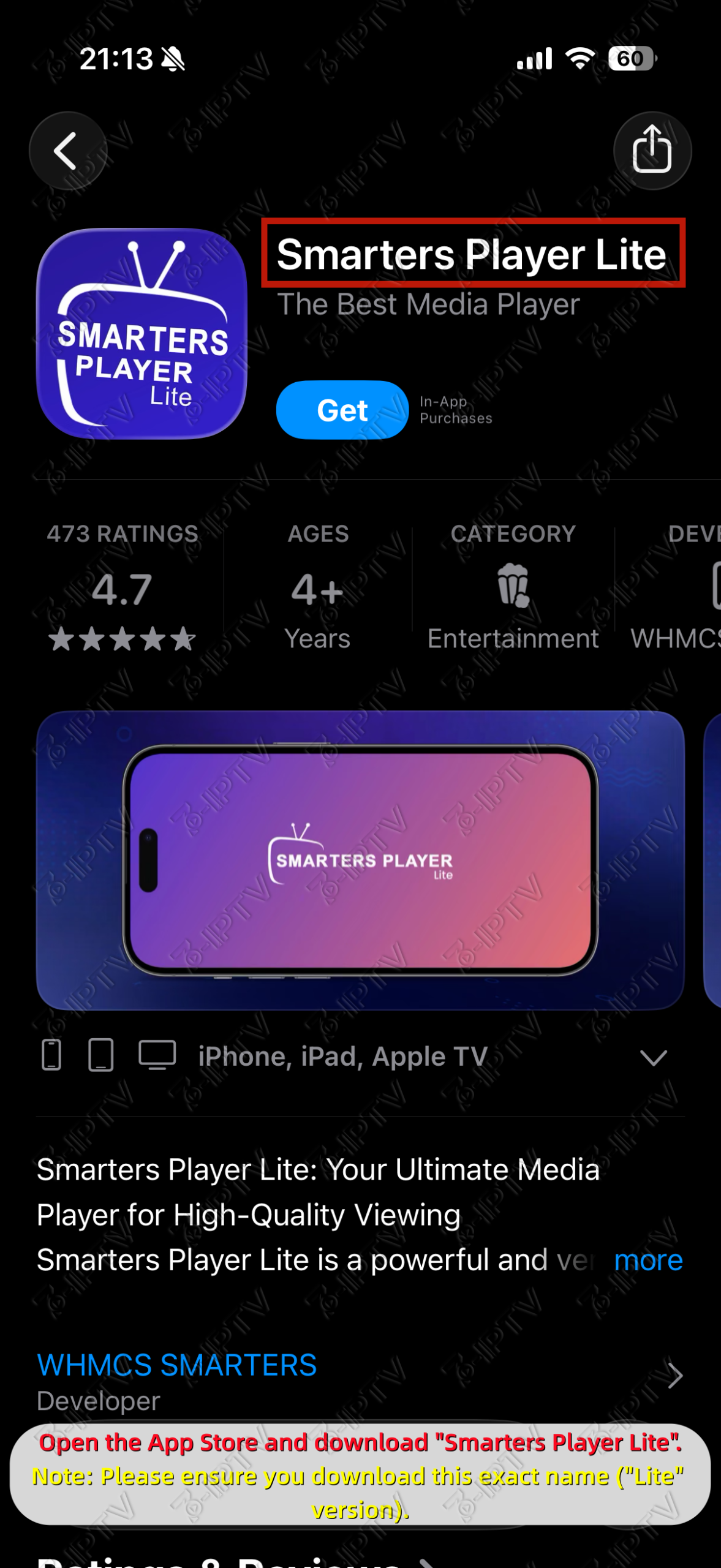
Go to the App Store and search for “Smarters Player Lite”.
Login
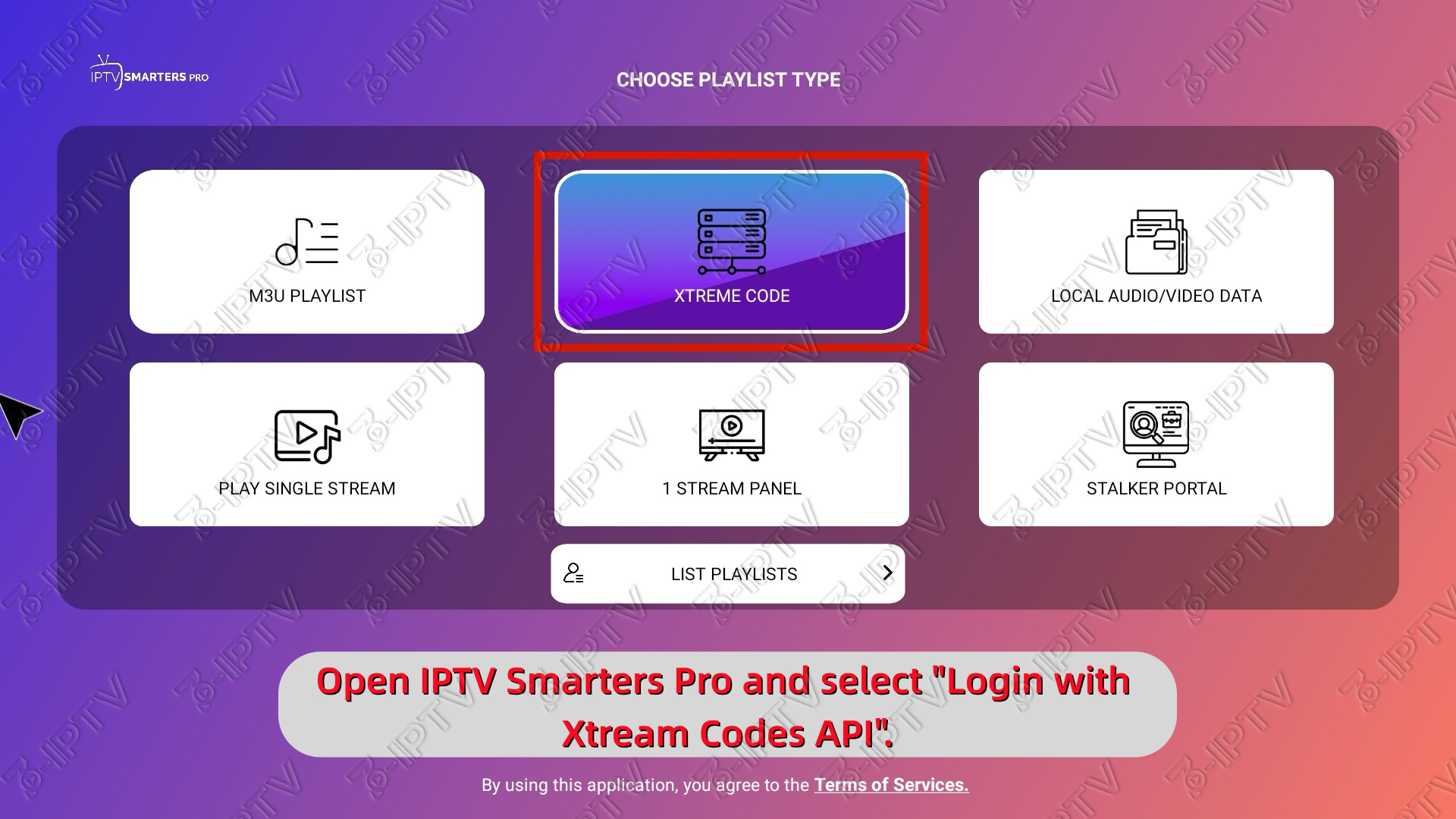
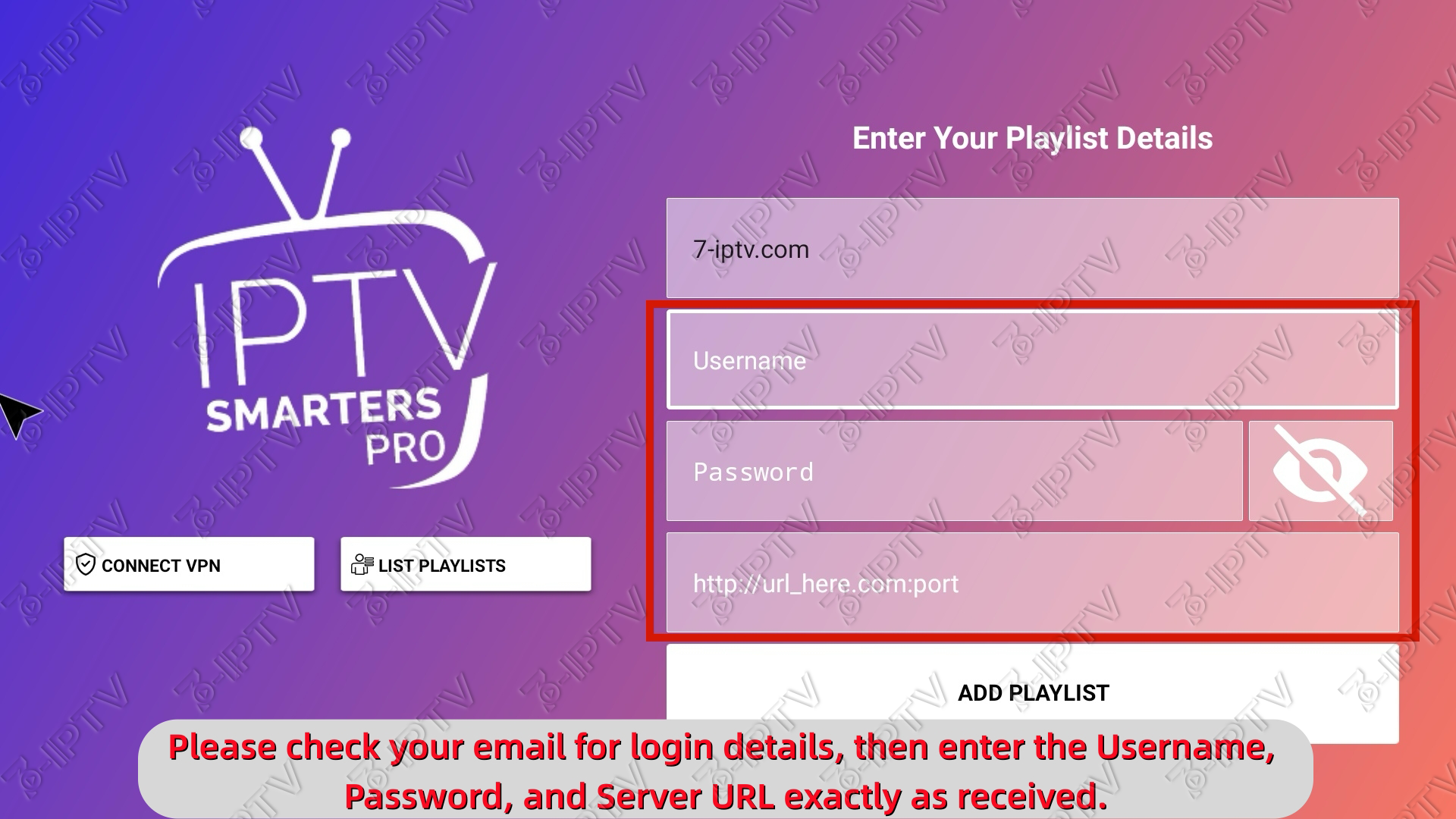
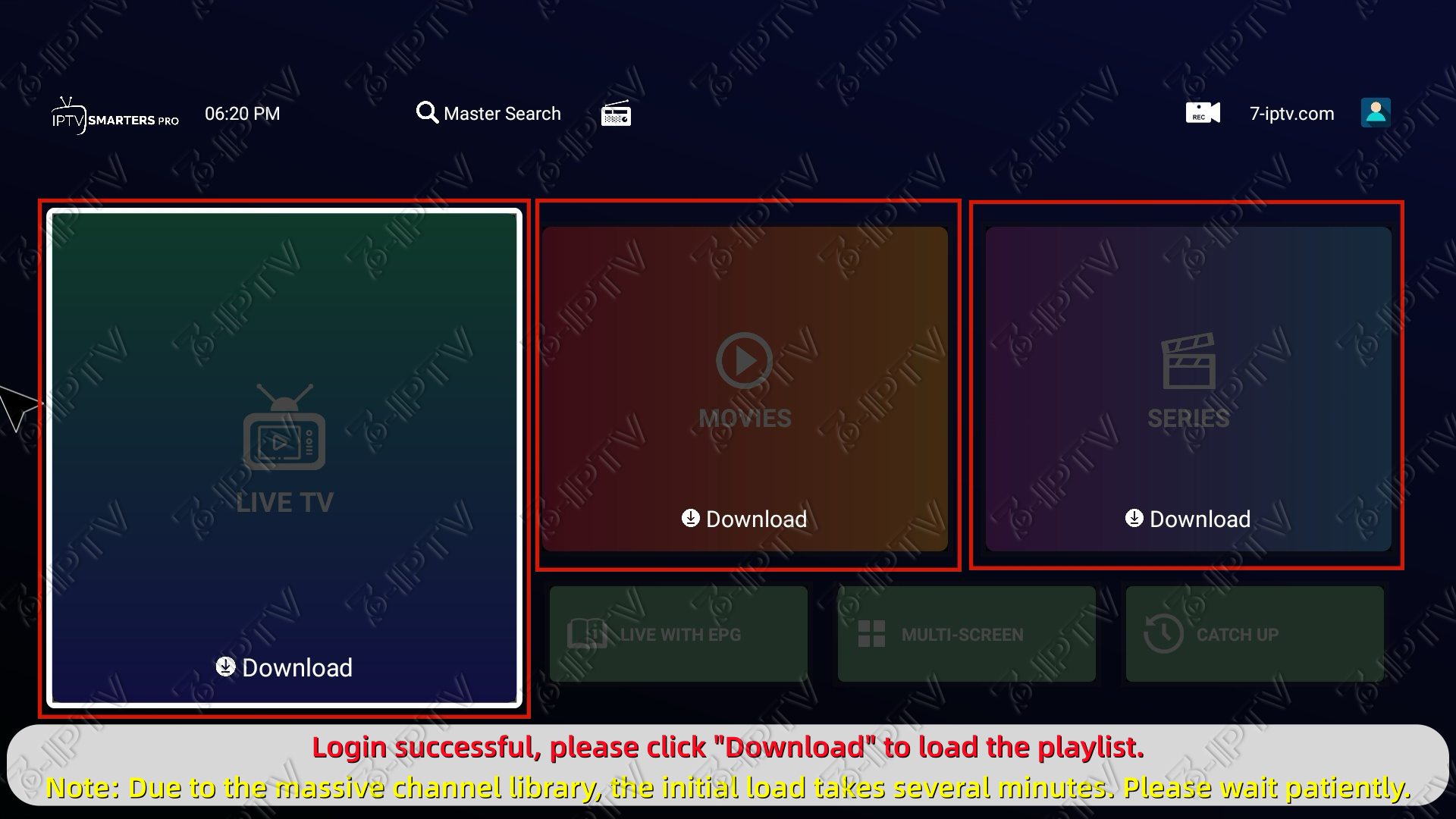
Open the app, select “Xtream Codes API”, and enter your login details.
PC & Mac Setup
For Windows, macOS, and web browsers.
For Windows and Mac, however, we recommend using a compatible paid player such as Ibo Player Pro for a better viewing experience.View the complete installation and activation guide on this page.
Login
For App: Select “Login with Xtream Codes API”.
For Web Player: Simply enter your Username, Password, and URL on the login screen.
MAG / Portal Setup
For MAG and portal-based devices using a MAC address.
Send Your MAC Address
Contact us and provide your device’s MAC address.
Enter the Portal URL
Once your account is ready, enter the Portal URL we provide.
Reload the Portal
Save your settings and reload the portal or restart your device.
Ibo Player Pro Setup
For supported TVs, streaming devices, phones, tablets, and computers.
Find the Correct Download Method
Visit https://iboproapp.com/ for device-specific video tutorials. To avoid incorrect versions, do not search the Google Play Store directly; strictly follow the official methods. (Below is a setup example for Android/Fire TV).
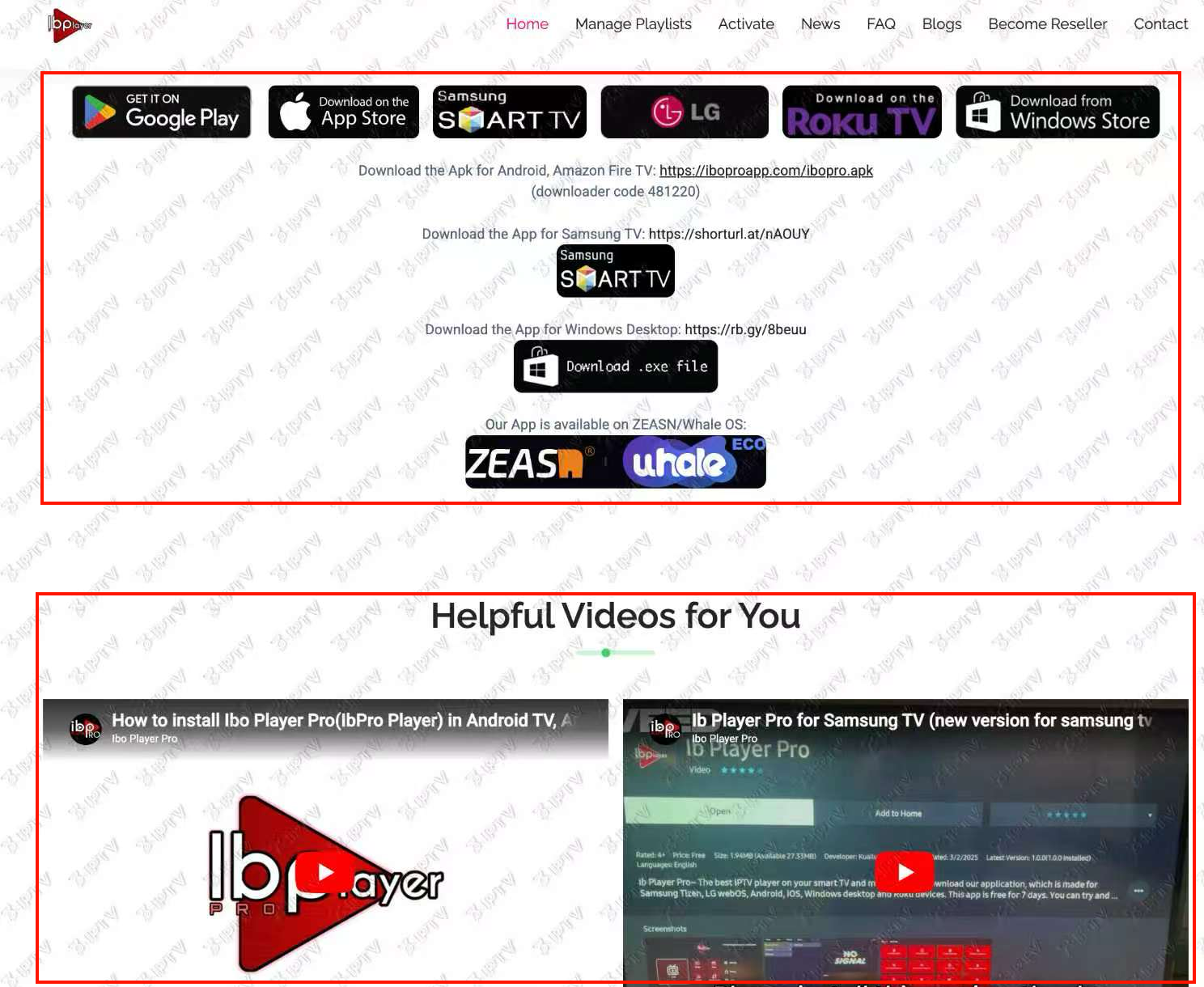
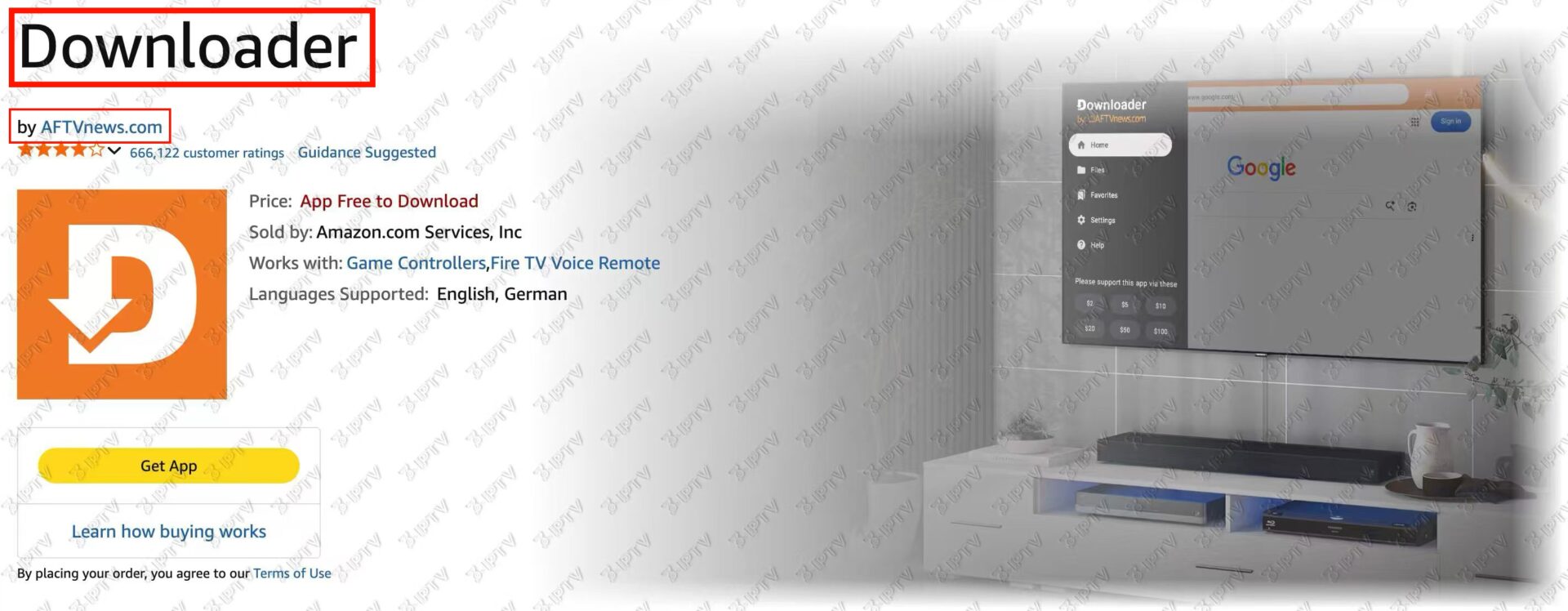
Get the Downloader App
Search for the “Downloader” app (orange logo) in your Google Play Store or Amazon Appstore, then install it.
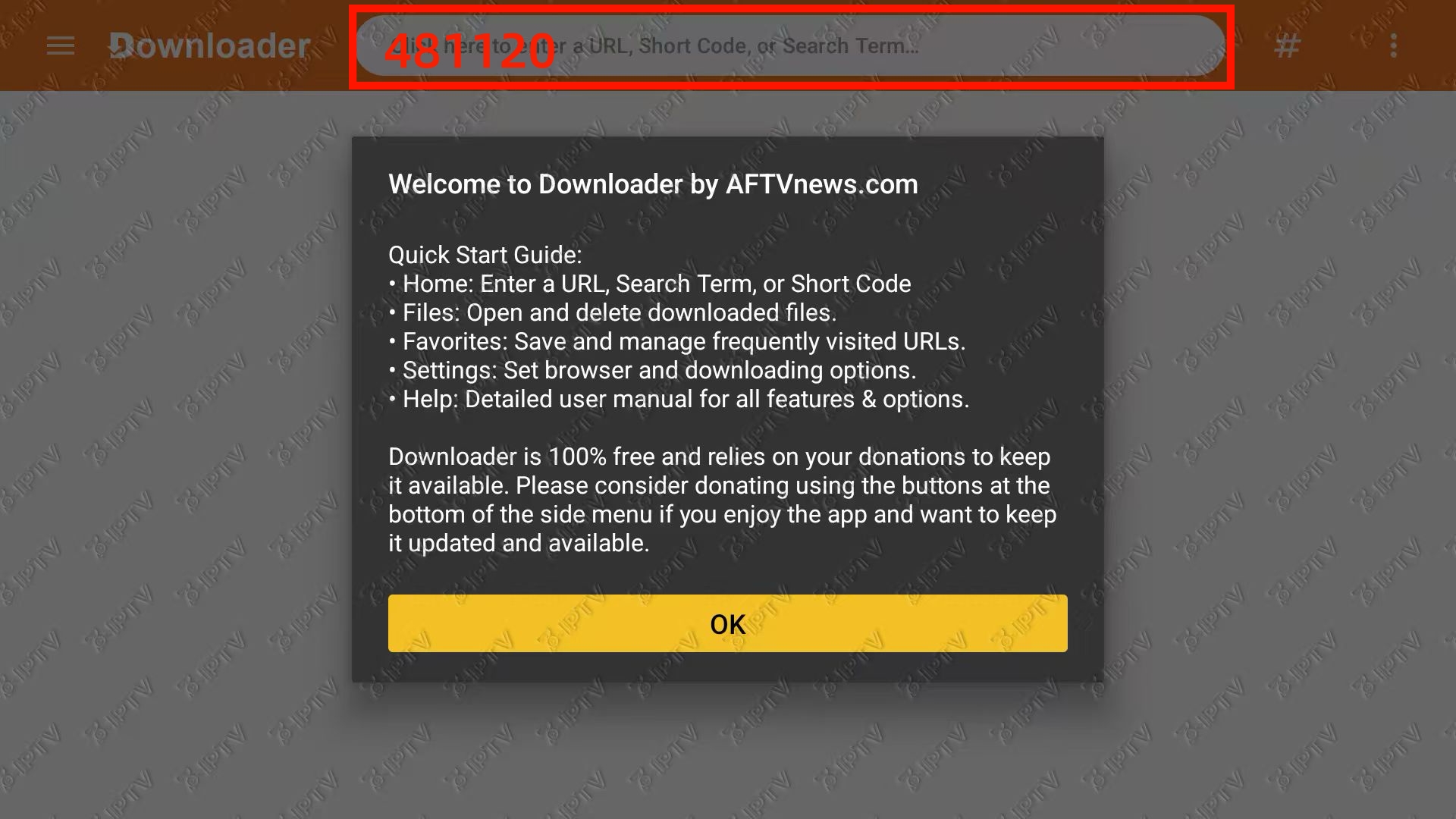
Enter the Download Code
Open the Downloader app, enter code 481220 in the URL box, and click Go. Wait for the file to download and install.
Wait for the file to download and click Install.
Choose Your Login Method
Open Ibo Pro Player. You can log in using either of the following two methods:
Method A (QR Code): Use your smartphone to scan the QR code on the screen to log in.
Method B (Xtream Codes): Click Add Playlist, select the Xtream-Codes-Api tab, and enter your subscription details (URL, Username, Password).
🎁 For 12-Month Subscribers:Your MAC Address is displayed on this screen. Please send this MAC Address along with your email to our support team, and we will activate the player for you!
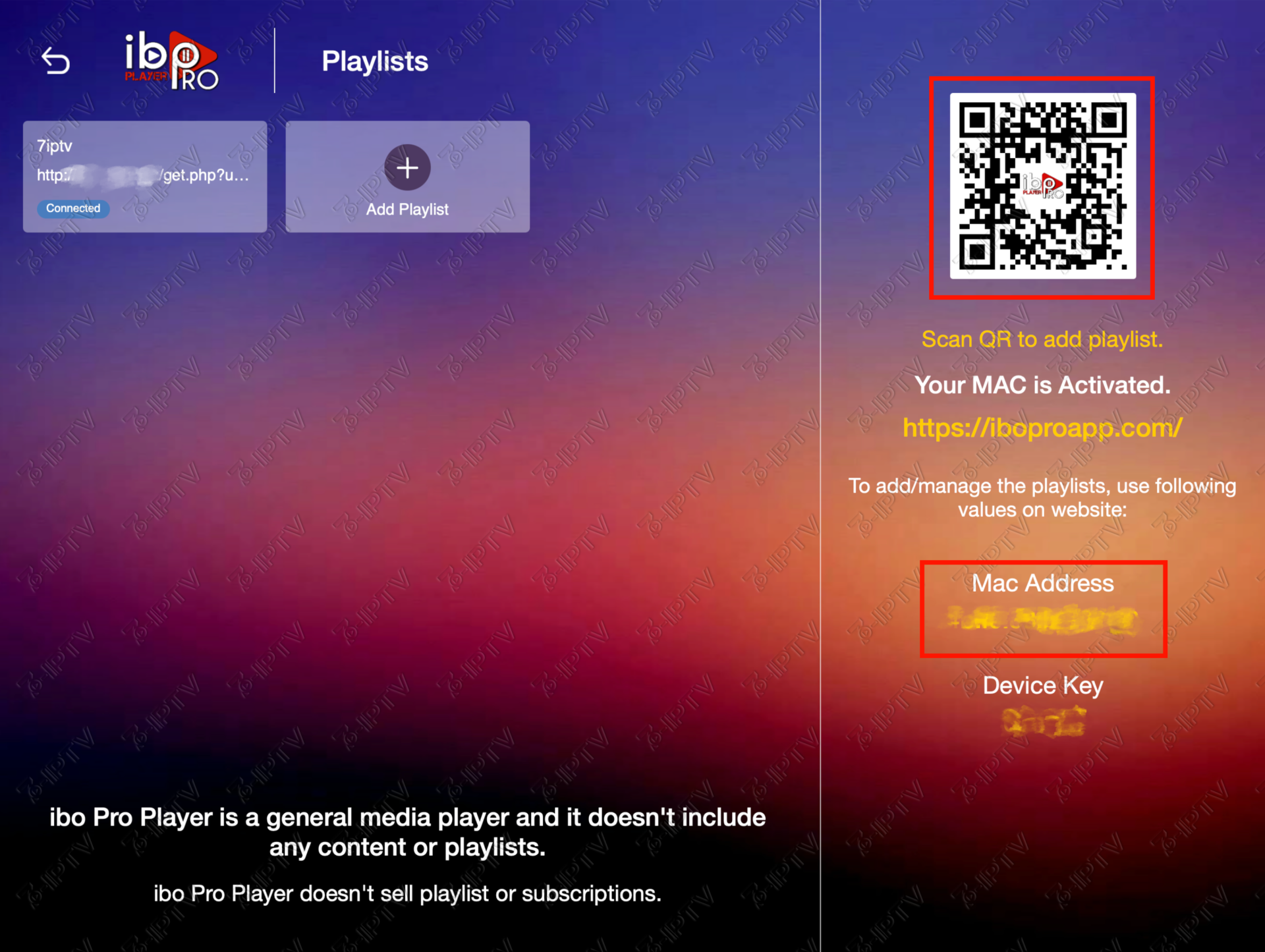
Log In & Add Playlist
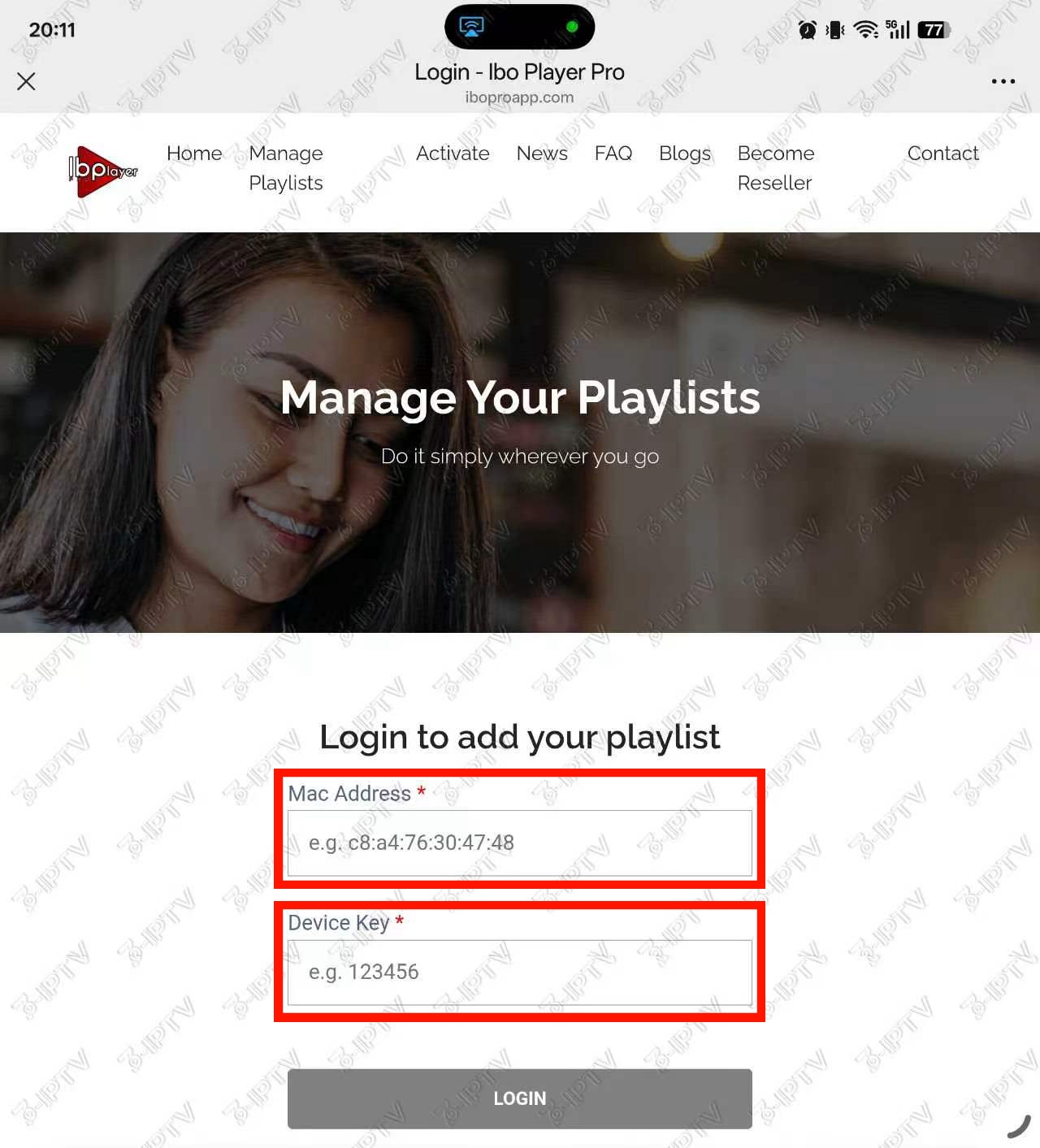
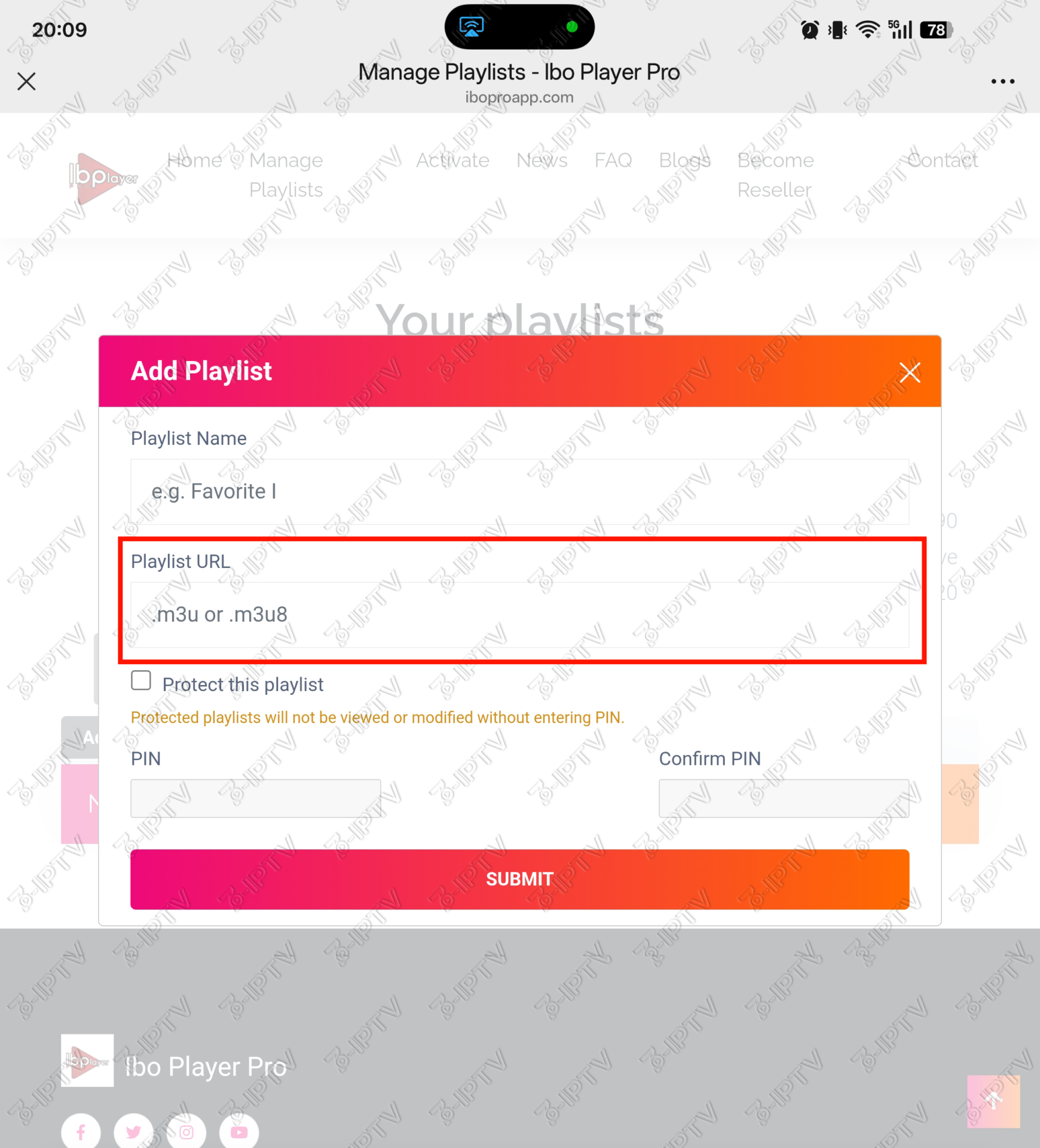
After scanning the QR code, log in using the MAC Address and Device Key shown on your TV. Click Add Playlist, enter a Playlist Name, and copy-paste the M3U link from your email into the Playlist URL field. Click Submit.
Restart & Watch
Restart the Ibo Pro Player app on your TV. Select Change Playlist to find the playlist you just added. Click on it to connect and start watching!
Still Need Help?
If you’re having trouble setting up your device or have any questions, our support team is ready to assist you.
Contact Support